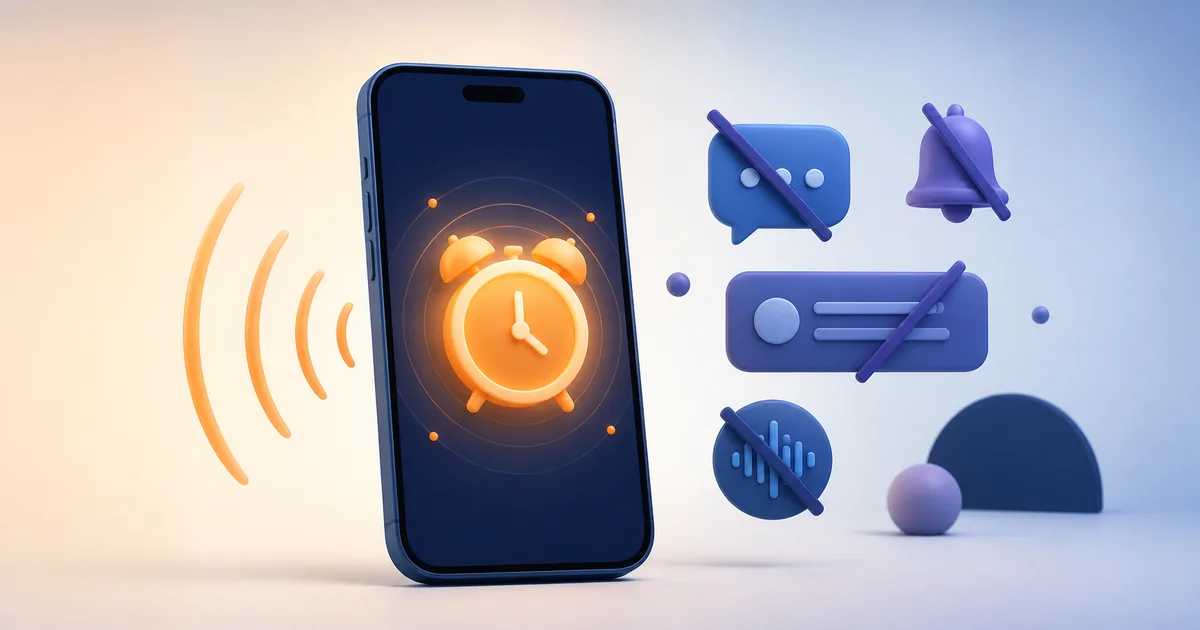
If you use Alarm Pro or Apple Clock, first identify which alarm mechanism is being scheduled—not just whether Silent mode is on. An Apple Clock alarm will still sound when your iPhone is in Silent mode, Ring/Silent mode, Do Not Disturb, or another Focus. Apple lists those modes as exceptions for Clock alarms in its official iPhone alarm guide.
There are two system alarm paths to distinguish. A regular Clock alarm uses the Ringtone and Alerts volume slider. A Sleep Schedule Wake Up alarm is managed through its own Alarm volume control in Alarm Options, as described in Apple’s Wake Up alarm guide. Their volume controls are not the same.
Third-party alerts need more careful wording. An app that schedules an Apple AlarmKit alarm can use the system alarm experience when the app is authorized and the alarm is successfully scheduled. A standard notification, a Time Sensitive notification, a Critical Alert, and an AlarmKit alarm are different system mechanisms. No app should be described as able to bypass every mute, Focus, permission, or device failure in every situation.
| Alert type | Silent mode | Focus | Volume or permission to check |
|---|---|---|---|
| Apple Clock alarm | Designed to ring | Designed to ring | Ringtone and Alerts, alarm sound, enabled state |
| Sleep Schedule Wake Up | Designed to ring | Works with Sleep Focus | Its separate Alarm volume control |
| Authorized AlarmKit alarm | Can override Silent mode when scheduled | Can override the current Focus when scheduled | Alarm authorization and schedule status |
| Standard notification | May be muted | May be filtered | Notification permission, sounds, and Focus settings |
| Time Sensitive notification | Not a guaranteed bypass | May break through when the user allows it | Time Sensitive permission and Focus settings |
| Critical Alert | Can bypass mute when entitled and authorized | Can bypass Do Not Disturb when entitled and authorized | Special Apple entitlement and user authorization |
Will an iPhone alarm ring on silent or Do Not Disturb?
For a normal alarm created in the Clock app, the short answer is yes. Silent mode changes how many calls and alerts are heard; Do Not Disturb and other Focus modes manage interruptions such as calls and notifications. Apple’s Set an alarm in Clock on iPhone page says a Clock alarm sounds even when Silent mode or Do Not Disturb is on.
That does not mean every sound on the phone will play. Music, videos, game audio, and ordinary notifications follow their own volume and Focus rules. A Clock alarm also still needs to be enabled, assigned a sound, and given enough alarm volume to be heard.
What Silent mode and Focus actually change
Silent mode is a device sound setting, while Focus is primarily a way to filter calls, notifications, and other interruptions. Sleep Focus can make bedtime feel quieter by reducing notifications, but it does not turn a valid Apple Clock alarm into a silent notification.
The most useful distinction is between a scheduled alarm and a notification. A regular notification can be silenced by notification settings or a Focus. A Time Sensitive notification can break through some Focus controls when the user allows it, but Apple’s Time Sensitive interruption-level documentation does not describe it as a guaranteed Silent-mode bypass; the user can disable Time Sensitive notifications. A Critical Alert is different again: it can ignore mute and Do Not Disturb, but the app needs Apple’s special Critical Alerts entitlement and the user must authorize it through the critical alert authorization option.
Apple Clock, Sleep Wake Up, AlarmKit, and notifications
It helps to keep these five cases separate:
- Regular Apple Clock alarms. The Clock app’s alarms are designed to sound through Silent mode and Do Not Disturb. Their general volume is controlled under
Settings > Sounds & Haptics > Ringtone and Alerts. - Sleep Schedule Wake Up alarms. A Wake Up alarm belongs to a sleep schedule and exposes its own
Alarm Options > Alarm volumeslider. Use the Clock or Health sleep-schedule controls for that alarm rather than assuming the regular Clock path is the only place to adjust it. - AlarmKit alarms. Apple’s AlarmKit scheduling documentation explains that an authorized, successfully scheduled alarm can override Silent mode and Focus when necessary. The app must request authorization through Apple’s AlarmKit authorization API, and a denied request means the app cannot schedule that AlarmKit alarm.
- Standard third-party notifications. Ordinary local and remote notifications depend on the app’s implementation, notification permission, notification settings, and Focus rules. Installing an alarm app does not automatically give its ordinary notifications the behavior of an AlarmKit alarm.
- Time Sensitive notifications and Critical Alerts. Time Sensitive notifications may break through Focus when allowed, but they are not automatically a Silent-mode bypass. Critical Alerts can ignore mute and Do Not Disturb only with the special entitlement and user authorization noted above. These are notification mechanisms, not synonyms for AlarmKit.
For the framework’s broader role, see Apple’s AlarmKit overview and the WWDC25 AlarmKit session. The practical rule is simple: identify which mechanism an app uses before promising what will happen in Silent mode or Focus.
Six checks when an iPhone alarm is too quiet or seems missing
Use this short checklist before blaming Silent mode or Do Not Disturb:
- Check the correct alarm volume. For a regular Clock alarm, open
Settings > Sounds & Hapticsand adjustRingtone and Alerts. For a Sleep Schedule Wake Up alarm, open Clock > Alarms > Change > Alarm Options and adjustAlarm volume, or edit the corresponding schedule in Health. Neither control is the same as media volume. - Check the sound selection. Edit the alarm and make sure
Soundis notNone. Apple notes that an alarm set to no sound may leave you with vibration or an on-screen alarm rather than an audible ringtone. - Check the schedule itself. Confirm the alarm is enabled, the time and AM/PM are correct, the repeat days are right, and the date and time zone are what you expect.
- Check AlarmKit authorization for an app alarm. An AlarmKit app needs the user’s alarm authorization. If authorization was denied, the app cannot successfully schedule the system alarm; look for the app’s permission state and schedule status rather than assuming the alarm is active.
- Check audio output and StandBy behavior. Apple says a Clock alarm plays at its set volume through the iPhone’s built-in speakers and connected headphones. In StandBy, alarm haptics are disabled, so make sure the alarm has an audible sound selected.
- Avoid changing the system clock as a fix. Apple warns that manually changing the iPhone’s date and time to alter app behavior can affect alarms. Use the alarm’s time, repeat, and schedule controls instead.
How Alarm Pro handles Silent mode and Do Not Disturb
Alarm Pro is built for people whose alarm rules change with work, school, holidays, or rotating shifts. Its current iPhone app targets iOS 26 and uses Apple’s AlarmKit framework. When you create or save an alarm, the app checks AlarmKit authorization; if permission is denied, Apple does not allow the system alarm to be scheduled.
When authorization succeeds and AlarmKit schedules the alarm, the system-level alarm behavior described by Apple can override Silent mode and the current Focus when necessary. AlarmKit handles that system scheduling layer; Alarm Pro adds shift patterns, holiday rules, custom repeats, and other planning logic on top. Those are separate responsibilities, so the app does not claim to repair every iPhone speaker, volume, permission, or operating-system problem.
If you are also managing an irregular work routine, see our shift schedule alarm guide and iOS alarm app comparison. You can also browse the Alarm Pro FAQ.
iPhone alarm silent mode FAQ
Does Sleep Focus stop iPhone alarms?
No. A valid Apple Clock alarm is designed to sound while Do Not Disturb, Sleep Focus, or another Focus is active. If it does not, check the alarm’s enabled state, sound, and the correct volume control first.
Is alarm volume the same as media volume?
No. A regular Clock alarm uses Ringtone and Alerts, not the media slider. A Sleep Schedule Wake Up alarm also exposes its own Alarm volume slider in Alarm Options. Video and music volume can therefore be high while an alarm remains too quiet.
Does the Sleep Schedule Wake Up alarm have its own volume?
Yes. Apple’s Wake Up alarm instructions show an Alarm volume slider under Alarm Options. That is separate from the general Clock alarm volume path.
Why does my iPhone alarm only vibrate?
The alarm’s sound may be set to None, or you may be relying on StandBy haptics, which Apple says are disabled for alarms. Edit the alarm, choose an audible sound, and check the volume control for that alarm type.
Do all third-party alarm apps work in Silent mode?
No. Behavior depends on whether the app uses AlarmKit, a standard notification, a Time Sensitive notification, or a Critical Alert, plus the required permissions and settings. Ask the app maker which system mechanism it uses instead of assuming every app has Apple Clock behavior.
Does an AlarmKit app need permission?
Yes. Apple’s AlarmKit API requires authorization. If the user denies it, an app cannot successfully schedule an AlarmKit alarm, even if the app’s own interface appears configured.
The answer to “will my iPhone alarm ring on silent?” is usually yes for Apple Clock alarms. When you need rotating shifts, holiday exceptions, or custom repeat rules, download Alarm Pro on the App Store and set up a schedule that matches your real life.