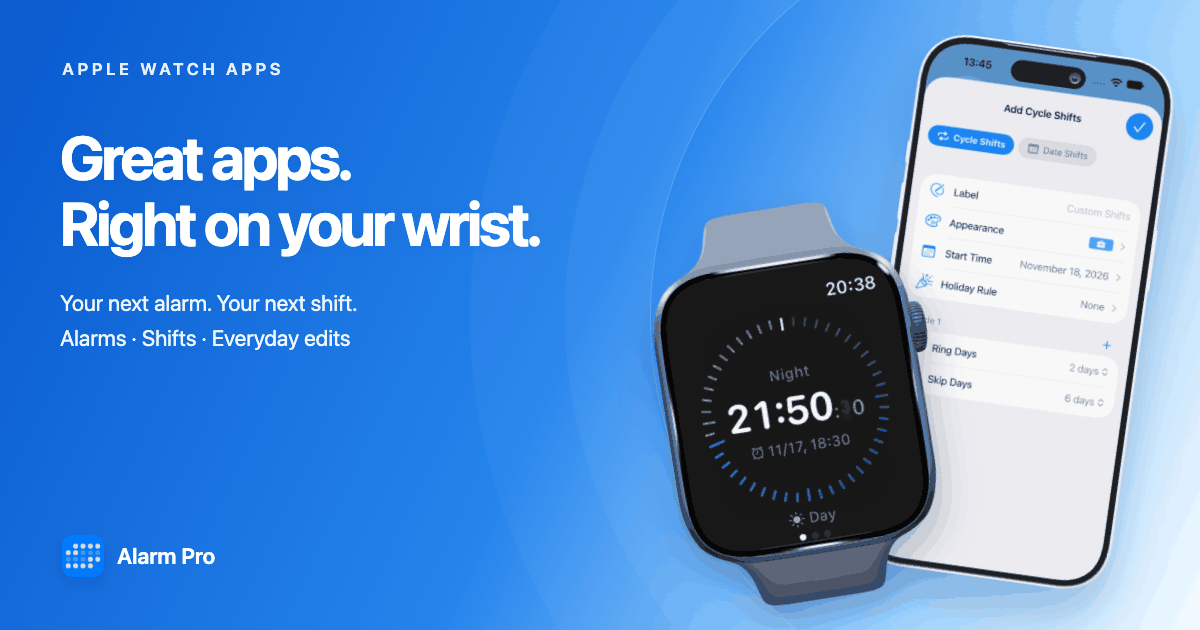
The Apple Watch apps worth installing are the ones that make a small, frequent action easier: checking your next alarm, looking up a shift, completing a task or recording an idea. For changing work patterns, Alarm Pro is a useful companion to the iPhone. Todoist, Bear and Streaks cover tasks, quick notes and habits.
This guide is published by the Alarm Pro team. We explain our app in more detail, alongside other options with links to their official documentation. The selection is organized by use case rather than a universal ranking.
Screenshots show example alarms and shifts; use your own dates and wake-up times.
Which third-party Apple Watch apps should you try?
| App | Useful for | A practical Watch action |
|---|---|---|
| Alarm Pro | Wake-up alarms and changing shifts | View the next alarm, check shifts and edit an iPhone alarm |
| Todoist | Daily tasks | Add a task or mark one complete |
| Bear | Capturing ideas | Dictate a note and check off a task in a recent note |
| Streaks | Building habits | Check progress and record a completed habit |
Choose the app that answers a recurring question in your day. If that question is “What time is my next alarm, and am I working tomorrow?”, start with Alarm Pro.
Alarm Pro: next alarm, shift calendar and alarm editing
A weekly alarm works well when every Monday looks the same. A rotating roster needs more context. With Alarm Pro, you configure your shifts on iPhone and use the Watch app to check the result without repeatedly taking out your phone.
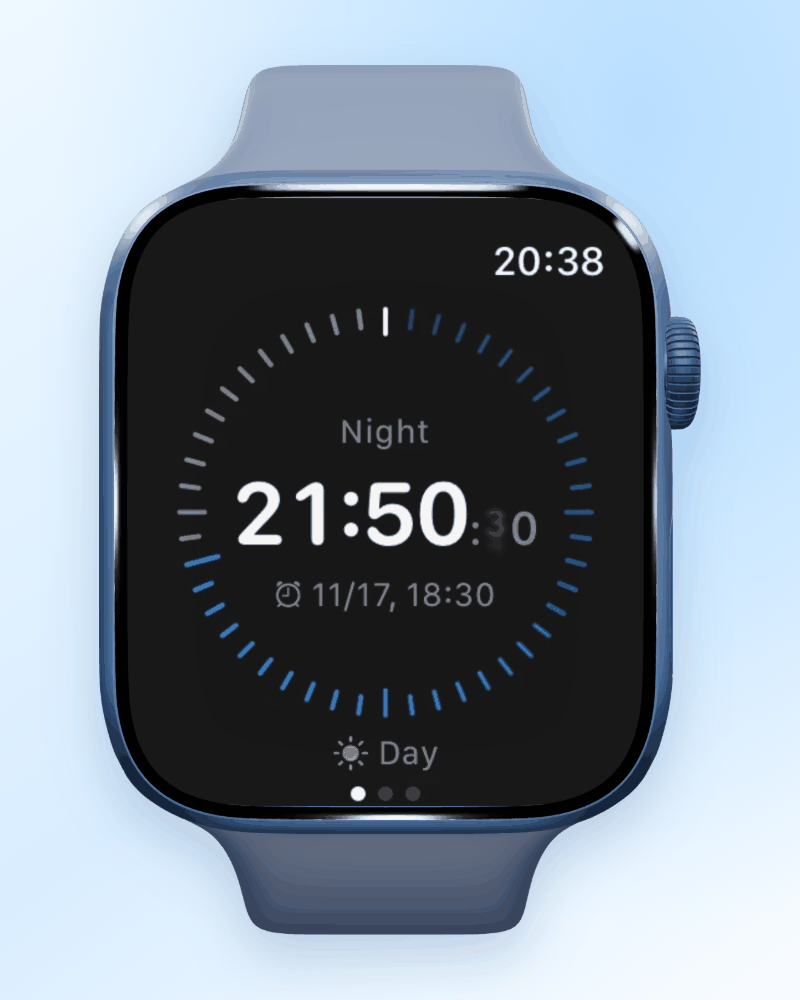
See the next alarm time on your wrist
The Watch overview shows the next alarm and the time remaining until it rings. That makes it easier to distinguish a morning wake-up from an afternoon alarm before a night shift. Check the displayed date as well as the time, particularly when your next working day is several days away.
Look up your shifts
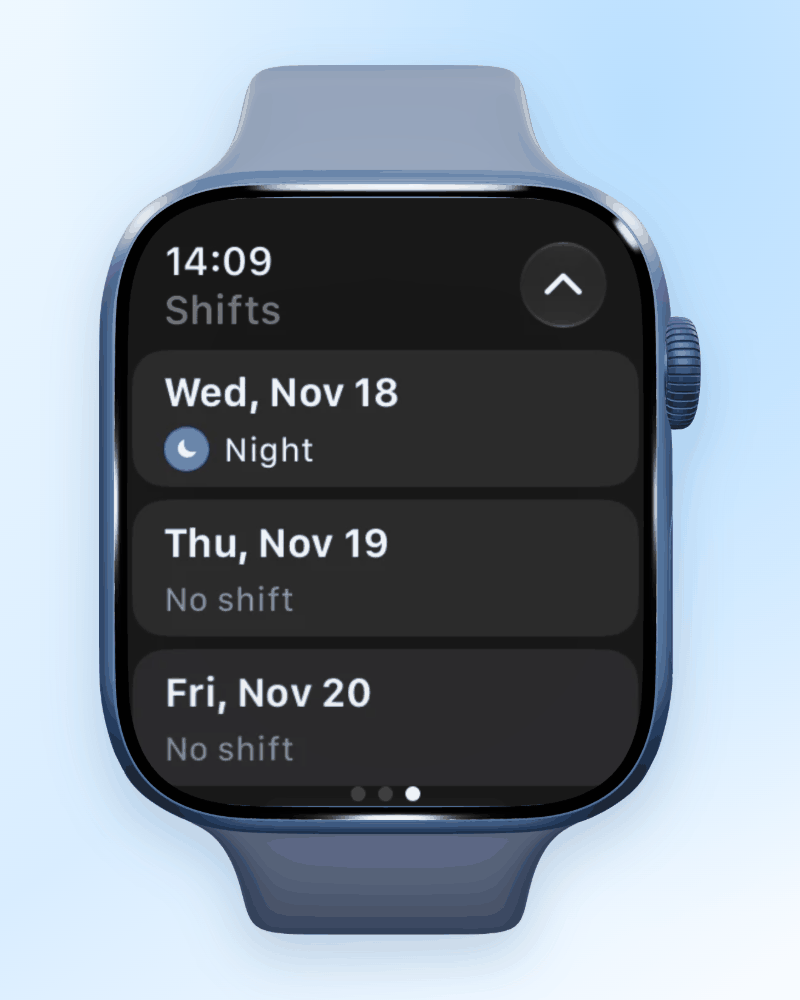
The Watch shift calendar puts your roster on your wrist. Check upcoming work and rest dates before arranging an appointment or agreeing to a shift swap. Keep the roster up to date in the iPhone app so the information on your Watch reflects your plan.
Edit an alarm from Apple Watch
The Watch app also lets you open an alarm and change everyday settings such as its time, repeat rule and snooze. You can enable or disable alarms from the list. More detailed setup, including shift configuration and custom sounds, belongs in the iPhone app.
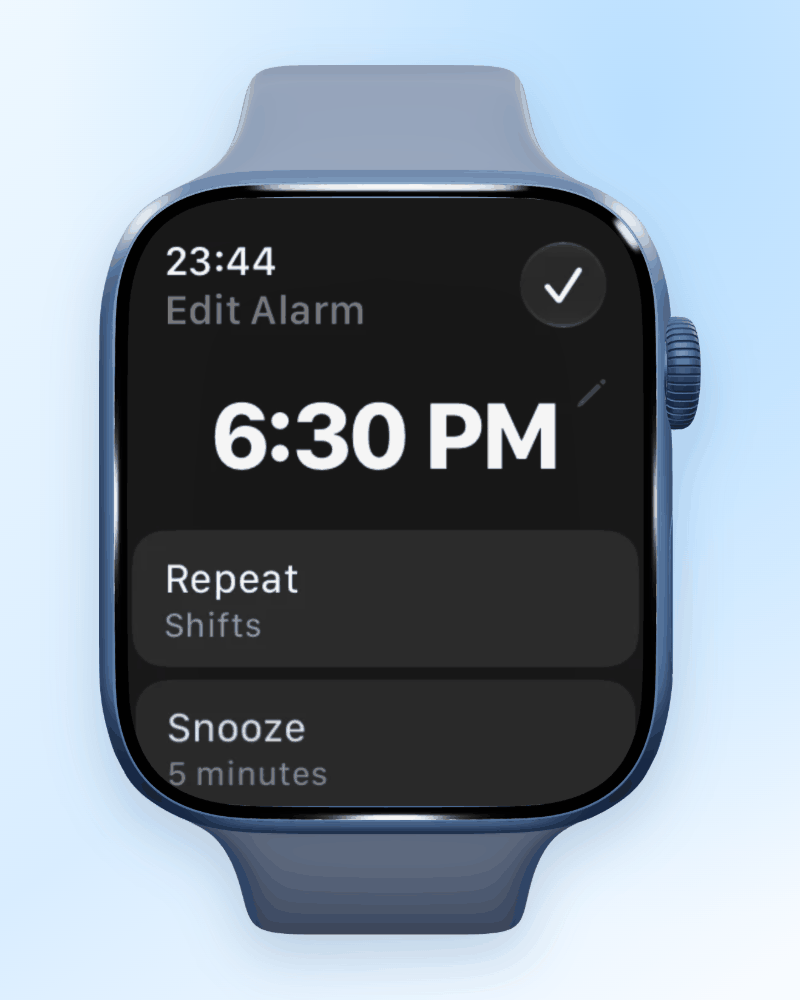
Connection matters: Alarm Pro on Apple Watch views and edits data from your connected iPhone. It does not independently schedule or sound alarms on the Watch. When the iPhone alarm rings, the connected Watch can also receive the alert. Keep the devices connected, wait for changes to save successfully, and check the next alarm after editing.
Flexible shift alarms start on iPhone
The useful part of a Watch overview is the schedule behind it. Alarm Pro supports several ways to decide which dates should ring, so you can choose a pattern that fits your actual work.
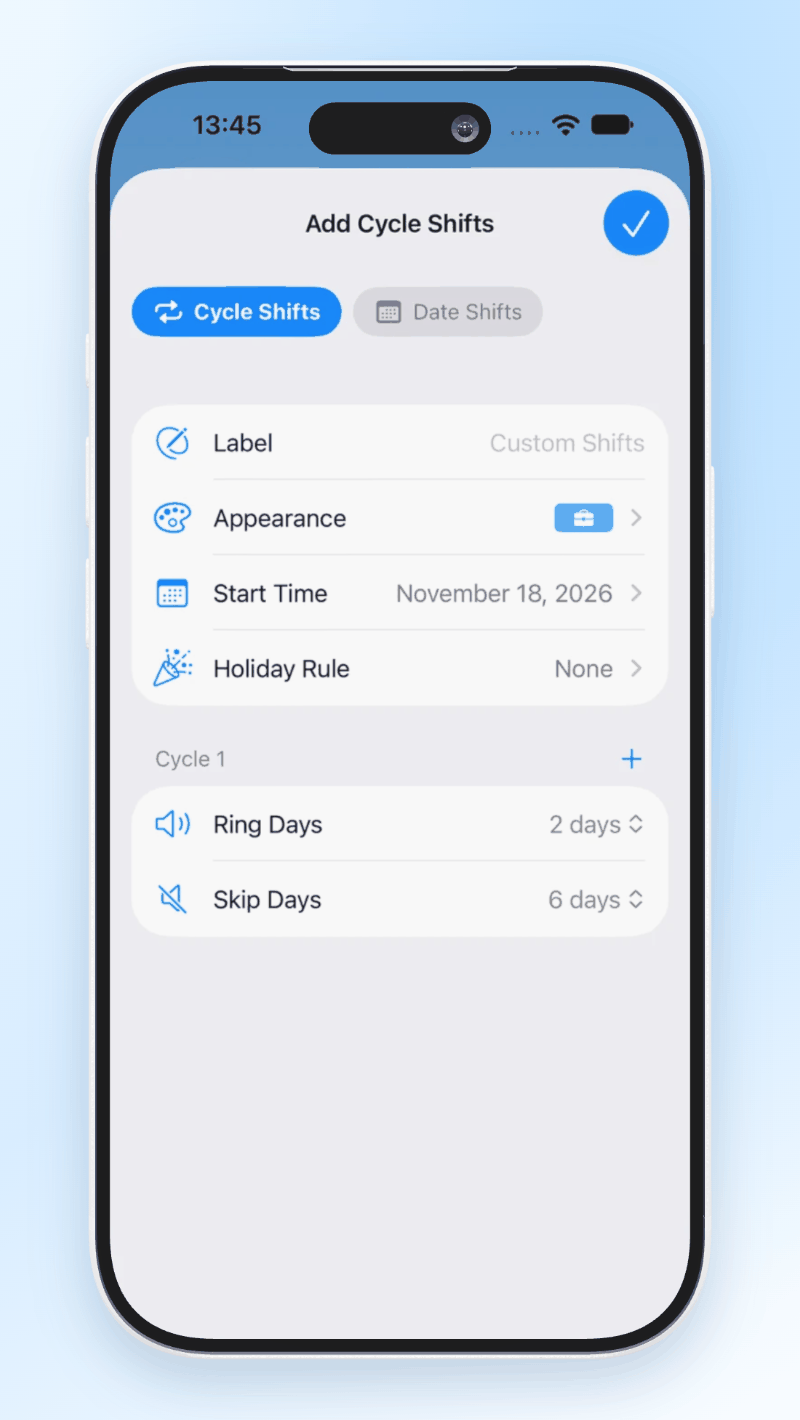
Cycle shifts for repeating work and rest blocks
Set a start date, then define ring days and skip days. For example, two ring days followed by two skip days creates a four-day cycle that moves through the weekdays. Multiple cycle blocks can describe a more varied repeating pattern.
For day and night shifts with different wake-up times, create separate shifts and link an alarm to each. Our rotating shift alarm tutorial walks through two day shifts, two night shifts and four days off.
Holiday templates for date-based shifts
If your working dates follow a public-holiday calendar, use holiday data as a template for a date-based shift and adjust the dates to suit your employer's roster. This is useful when a standard Monday-to-Friday repeat cannot account for holidays or designated make-up workdays.
Choose the relevant supported country or region. Holiday arrangements differ between regions and between employers; preview your actual working dates before relying on the template.
Apply holiday rules to a cycle
A cycle and a holiday calendar solve different parts of the problem. The cycle supplies the repeating pattern; the holiday rule filters the dates that qualify. Alarm Pro lets cycle shifts use holiday rules, including excluding holidays, so a repeating roster can also respect the selected holiday calendar.
Use this only if it matches your job. A hospital or support team may work through a public holiday; another workplace may suspend the usual cycle. Check the result around a holiday boundary rather than assuming every roster should skip holidays.
Fine-tune individual dates
For a shift swap, leave day or extra working day, manually adjust the affected dates instead of rebuilding the recurring pattern. Review the adjusted date and the following cycle transition to make sure the exception matches your roster.
Groups, temporary skips and custom sounds
These iPhone features handle the small changes that happen around a roster:
- Alarm groups: organize related alarms, such as work wake-ups and personal reminders, so they are easier to find and manage.
- Temporary skip: skip an upcoming occurrence when you have a day off, while retaining the alarm's recurring setup. Check the next alarm to confirm the intended occurrence was skipped.
- Custom sounds: import local audio or record a sound in the iPhone app. Choose a sound for each alarm and preview it before using it for a workday wake-up.
Grouping organizes alarms, a skip handles a temporary exception, and a shift rule determines the underlying dates. Using each for its intended purpose keeps the setup understandable. See the Alarm Pro FAQ for more product details.
Three other useful Apple Watch apps
Todoist for tasks you want to act on now
Todoist is useful when the next action is a task rather than an alarm. Its Watch app can add tasks, change dates and mark tasks complete. Its official guide says updates require the Watch to be in range of your Apple device. Todoist's Apple Watch guide explains the controls and connection requirement.
Bear for quick ideas and recent notes
Bear lets you dictate a new note, append text and check off tasks in notes. It syncs the 15 most recent notes, including pinned notes, but excludes encrypted notes. It is a useful choice for capturing a thought while walking. Bear's Watch overview describes these features and limits.
Streaks for habits
Streaks helps you keep track of repeated habits. Its Apple Watch app lets you check tasks and record completion from your wrist, with progress syncing across supported devices through iCloud. Choose it for a habit you want to maintain, such as reading or walking. See the Streaks official site for its Watch features.
Questions about Alarm Pro on Apple Watch
Can I view and edit alarms on Apple Watch?
Yes. Alarm Pro supports viewing the next alarm, checking shift information and editing everyday alarm settings from the connected Watch. Use iPhone for complex shift and sound configuration.
Does Alarm Pro work as an independent Watch alarm?
No. The Watch app works with your connected iPhone's alarm data. Do not rely on the Watch app to independently schedule or sound an alarm when the iPhone is unavailable.
Can a rotating shift also skip public holidays?
Yes, cycle shifts can use holiday rules. Select the relevant rule and region, then check the dates against your employer's roster. Leave holiday filtering off when your work cycle continues through holidays.
Should I use a skip or change the shift?
Use a temporary skip for an upcoming alarm you do not need. Adjust a date when the roster itself changes. Change the base cycle when the repeating pattern changes for future work.
Set up the roster on iPhone, check several upcoming work and rest dates, then use Apple Watch for quick checks and everyday edits. If your alarm times change with your shifts, download Alarm Pro to keep that information close at hand.
Device artwork was rendered with Phone Mockup Studio. The iPhone 17 Pro model is by Ranguel; the Apple Watch Series 7 model is by SDC PERFORMANCE™️. Both are licensed under CC BY 4.0. We added app screenshots, lighting, backgrounds and layout. Device frames are illustrations and do not indicate the simulator model.